







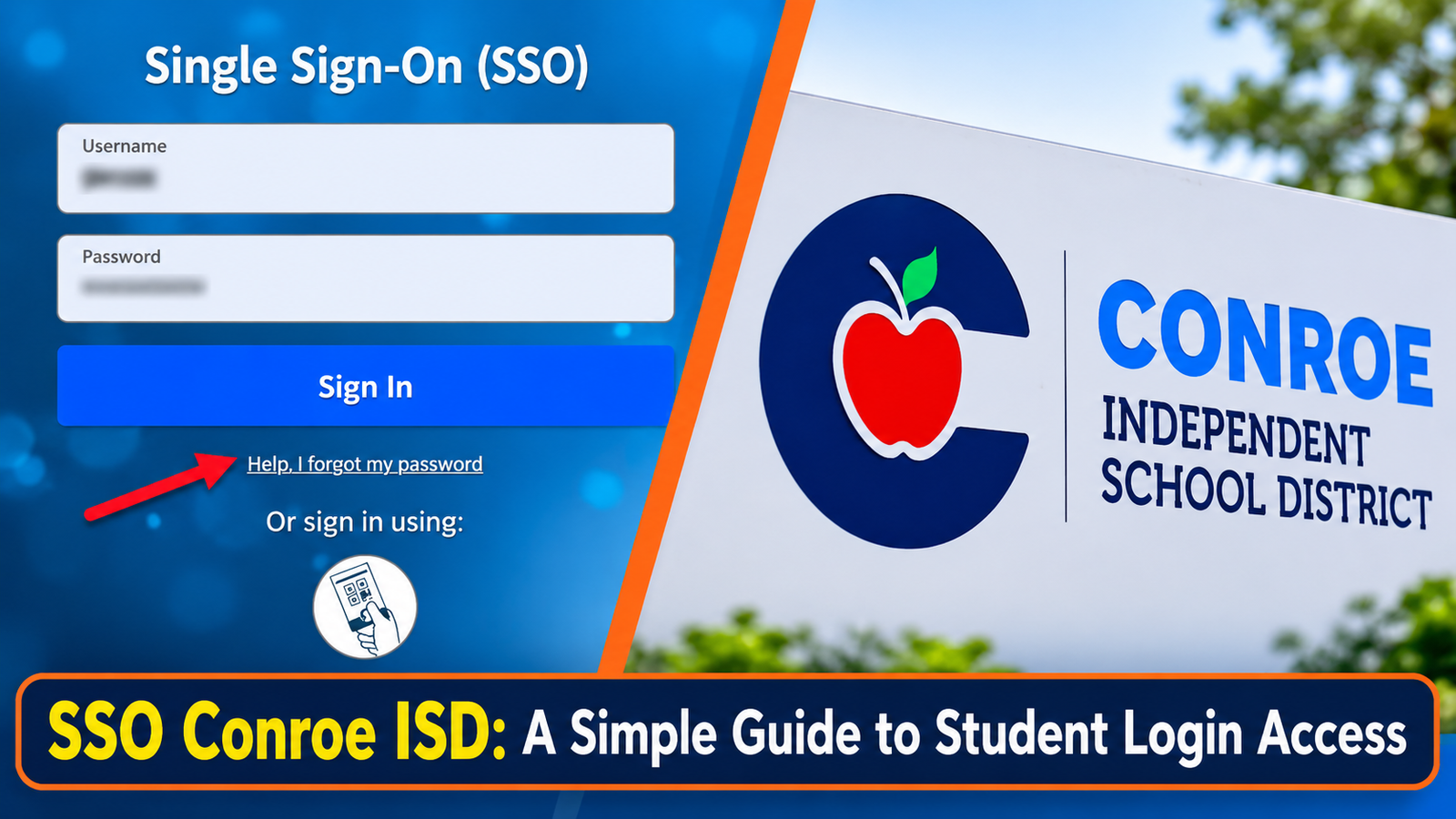
Students and parents often need a convenient way to access school-related websites, learning tools, and digital resources. The SSO Conroe ISD portal provides students and staff in Conroe Independent School District (CISD) with a central place to reach supported educational applications. Powered by ClassLink, the platform allows users to sign in through one account instead of managing separate login details for every school tool. Whether you are accessing classroom resources, recovering a forgotten password, or using a QuickCard, understanding how the system works can make everyday school activities easier.
Quick Overview of SSO Conroe ISD
| Detail | Information |
|---|---|
| Platform | ClassLink |
| School District | Conroe Independent School District |
| Login System | Single Sign-On (SSO) |
| Main Login Website | https://sso.conroeisd.net |
| Primary Users | Students and district staff |
| Login Methods | Username and password, QuickCard where available |
| Main Purpose | Accessing supported educational applications |
| Technical Support | Conroe ISD Technology Services |
What Is SSO Conroe ISD?

SSO Conroe ISD is the district’s Single Sign-On platform, which gives students and staff access to supported digital tools through one centralized login system. Instead of entering different usernames and passwords for multiple educational applications, users can sign in once and open available resources from their ClassLink dashboard.
The platform is designed to simplify digital learning and reduce the time spent switching between websites. Depending on their accounts and permissions, users may see classroom applications, learning resources, and other district-supported services.
ClassLink also provides a personalized dashboard, making it easier to find frequently used applications. The available tools may differ depending on whether someone is a student or a staff member.
How to Access the SSO Conroe ISD Login Portal
Accessing the SSO Conroe ISD portal is straightforward. Students generally need their district-issued login credentials to enter the system.
Follow these steps:
- Open a web browser on your computer, Chromebook, or supported device.
- Visit the official login page at https://sso.conroeisd.net.
- Wait for the ClassLink login screen to appear.
- Enter your Conroe ISD student username.
- Type your assigned password.
- Select the Sign In option.
- After successful authentication, your available applications should appear on the dashboard.
For the best experience, use an updated browser such as Google Chrome or Microsoft Edge. If your login details do not work, check that you entered the correct username and password before trying again.
Students who are logging in for the first time should follow the instructions provided by their school or teacher.
How Students Can Use ClassLink QuickCard
One useful feature associated with SSO Conroe ISD is QuickCard login. This option allows eligible students to access their accounts using a unique QR code instead of manually entering their usernames and passwords.
A QuickCard is generally provided by the school and is connected to an individual student’s account.
Here is how the process works:
- Open a browser and visit sso.conroeisd.net.
- Look for the QuickCard option on the login screen.
- Select the QR code option.
- Allow camera access if your browser requests permission.
- Hold the student’s QuickCard in front of the device camera.
- Wait for the system to recognize the code and complete the login.
QuickCard can be particularly convenient for younger students who may find typing login information difficult.
Students should keep their QuickCards secure and avoid sharing them with others. If a card is lost or damaged, contact a teacher or school staff member for assistance.
What to Do If You Forget Your SSO Conroe ISD Password
Forgetting a school login password can interrupt access to digital assignments and learning materials. Fortunately, students have a way to request help.
According to the Conroe ISD student support guidance, students who forget their ClassLink passwords can ask an assigned teacher for assistance.
The teacher can generate a temporary password when appropriate. The student can then use that temporary password to sign in and create a new personal password.
Follow these steps:
- Contact one of your assigned teachers.
- Explain that you cannot access your student account.
- Request a temporary password reset.
- Open the official SSO login page.
- Enter your student username and temporary password.
- Follow the instructions to create a new password.
- Sign in again using your updated credentials.
Students should never share their passwords with classmates. If the reset process does not work, the school or district technology support team can provide further guidance.
Why Is Your SSO Conroe ISD Account Locked?
Repeated unsuccessful login attempts can temporarily prevent students from accessing their accounts.
Conroe ISD’s student support documentation explains that an account may become locked after five unsuccessful login attempts. The student should wait five minutes before trying again.
Rather than repeatedly entering different passwords, take a moment to check the login information.
Common reasons for login problems include:
- Incorrect username or password.
- Typing mistakes or accidental spaces.
- Using an outdated password.
- Entering an old temporary password.
- Browser-related problems.
- A temporary account lock following failed attempts.
If waiting does not resolve the issue, ask an assigned teacher for help with the password or account settings.
What Applications Are Available Through the Student Dashboard?
The SSO Conroe ISD dashboard acts as a central starting point for supported digital resources. Students can find applications assigned to their accounts without searching for each website separately.
Depending on the student’s grade, school, and account permissions, the dashboard may include educational applications and classroom tools.
These resources can help students:
- Access digital learning materials.
- Open assigned educational applications.
- Find school-related online resources.
- Navigate supported classroom platforms.
- Manage everyday digital learning activities.
Not every student will see the same applications. The district determines which resources are available to different accounts.
If an expected application is missing, students should check with their teacher or consult the district’s technology support documentation.
SSO Conroe ISD Login Problems and Troubleshooting Tips
Sometimes the SSO Conroe ISD login process may not work as expected. Most common issues can be investigated through a few simple troubleshooting steps.
Check your internet connection: Make sure your device is connected to a stable network before opening the login page.
Use an updated browser: Try Google Chrome or Microsoft Edge if the portal does not load correctly.
Verify your login details: Carefully check your username and password for typing errors.
Wait after failed attempts: If your account is temporarily locked, follow the district’s waiting instructions before trying again.
Check for missing applications: If you can sign in but cannot find an expected application, contact your teacher.
Ask for technical assistance: When the problem continues, use the official Conroe ISD support resources.
It is also important to remember that district technology support may be limited to devices purchased, maintained, and managed by Conroe ISD.
Is SSO Conroe ISD Safe to Use?
The district uses ClassLink to provide centralized access to supported digital applications. A single sign-on system can make account management easier while helping users access resources through an established authentication process.
Students should still follow basic account safety practices.
Never share passwords with other students, avoid signing in on public computers without permission, and sign out when using a shared device. Keep QuickCards private and report lost cards to school staff.
Parents can also remind children to use their school accounts responsibly and avoid sharing personal login information online.
Frequently Asked Questions
1. What is SSO Conroe ISD?
SSO Conroe ISD is the Single Sign-On login platform used by Conroe Independent School District. It uses ClassLink to provide students and staff with centralized access to supported school applications and digital learning resources.
2. What is the official Conroe ISD SSO login website?
The official login address is https://sso.conroeisd.net. Students can open this website using a supported browser and enter their district-issued credentials to access their available applications.
3. How do students log in to ClassLink?
Students should visit the district’s SSO login page, enter their assigned username and password, and select Sign In. Students who have been provided a QuickCard may also use that login option where available.
4. What should I do if I forget my student password?
Contact an assigned teacher and request assistance with a temporary password reset. Once the teacher provides the temporary password, sign in through the ClassLink portal and follow the instructions to create a new password.
5. Why is my Conroe ISD account locked?
An account may become temporarily locked after five unsuccessful login attempts. According to the student support guidance, students should wait five minutes before trying again. Contact a teacher if the issue continues.
6. Can parents use the student SSO portal?
The student SSO portal is designed primarily for student accounts and district-supported applications. Parents and guardians may have separate district resources and account access options. They should consult the official Conroe ISD parent and guardian support pages for the appropriate services.
Conclusion
The SSO Conroe ISD portal makes it easier for students and staff to access supported digital learning resources through one centralized login system. With ClassLink, students can use their regular credentials or an available QuickCard to reach their school applications. Understanding the login process, password recovery steps, and common troubleshooting solutions can help prevent unnecessary interruptions. For account-specific problems, the best option is to contact an assigned teacher or use official Conroe ISD technology support resources.
READ MORE: Kaden Brent Carter: Everything to Know About His Life